 Russian
 Ukrainian
 English
 Polish
How to bind a button in CS 1.6
We will teach and show you how to bind a button in Counter Strike 1.6 to any command, and we will also explain in detail what Bind is in CS 1.6, and how to bind a button to chat, weapons, menus, and other commands.
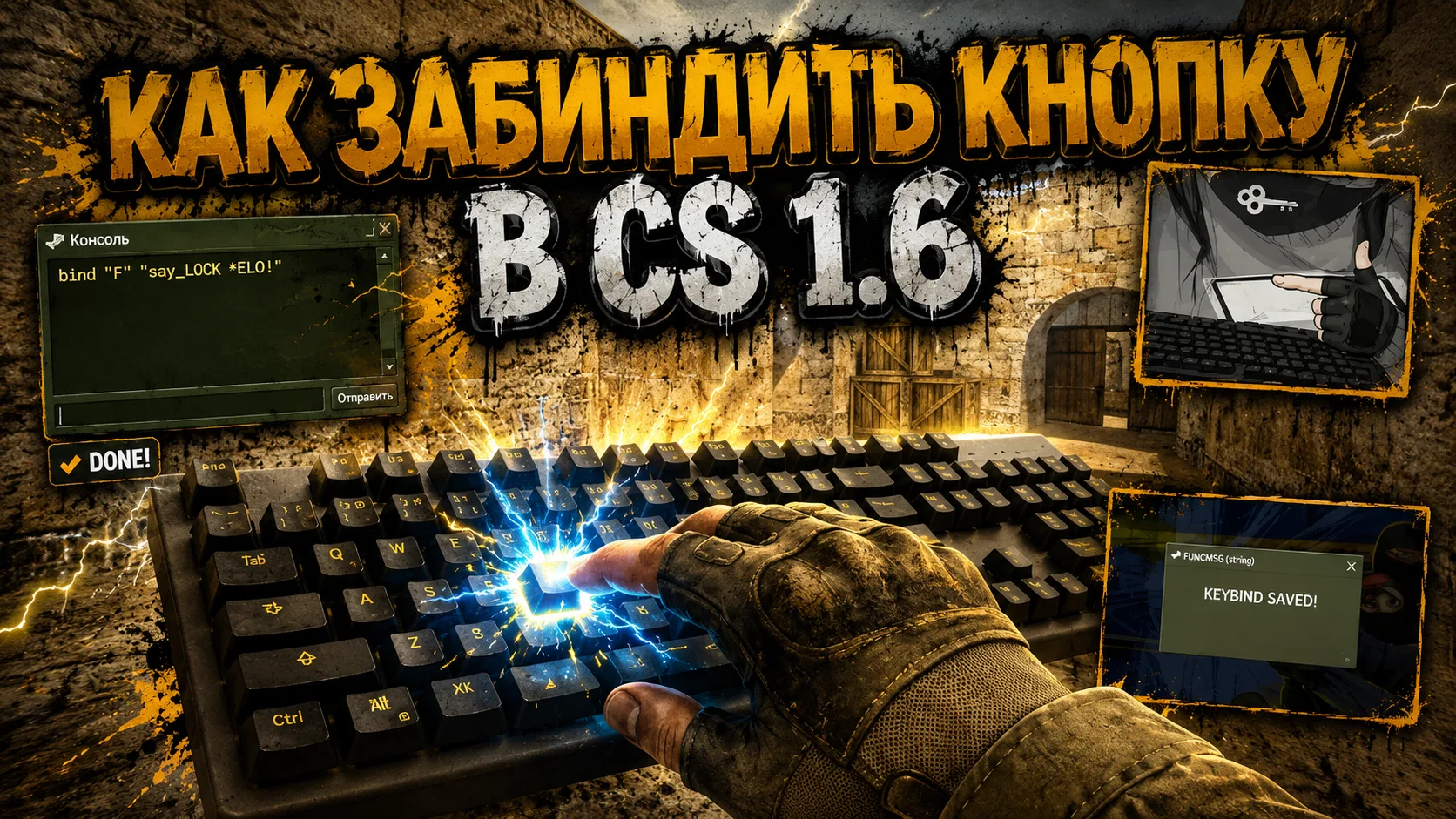
How to bind a button in CS 1.6? Complete instructions on binds in Counter-Strike 1.6
Bind in Counter-Strike 1.6 is the binding of one or more commands to a specific key. Thanks to binds, you can instantly buy weapons, open the server menu, write chat messages, change weapons and perform other actions with one keystroke. Binds help save time and make the game more comfortable.
What is bind in CS 1.6
Team bind Associates the selected key with a specific game command.
The general syntax looks like this:
bind "key" "command"
For example:
bind "F1" "say Hello everyone!"
After pressing the key F1 The following message will be automatically sent to the chat:
Hello everyone!
How to open the console in CS 1.6
Before creating a bind, you need to open the console.
Step 1.Launch Counter-Strike 1.6.
Step 2.Press the ~ (Ё) key
If the console does not open:
1.Go to Settings.
2.Open a tab Keyboard.
3.Click Additionally.
4.Enable the item Enable Developer Console (~) (if it's available in your build).
How to bind a button via the console
The easiest way.
Open the console and enter:
bind "F5" "say Hello!"
Click Enter.
Now when you press F5the message will automatically be sent to the chat.
How to save a bind forever
If you don't want to enter commands every time you start the game:
Open the game folder.
For example:
Counter-Strike 1.6\cstrike\
Go to the folder: cfg
Open the file: config.cfg
or better userconfig.cfg
Add the necessary binds.
For example:
bind "F6" "say Welcome!"
Save the file.
The next time you start the game, the binds will be loaded automatically. Usage userconfig.cfg helps to save your settings separately from the main configuration file.
Examples of popular binds
Bind to message:
bind "F1" "say Happy gaming everyone!"
Bind to team chat:
bind "F2" "say_team I'm going to point A!"
Bind to open the server menu
On most servers the command is used:
bind "M" "say /menu"
Sometimes used:
bind "M" "say /shop"
bind "M" "say /vip"
bind "M" "say /guns"
It all depends on the server.
Bind for the purchase of weapons:
Buy AK-47: bind "F3" "ak47"
Buy M4A1: bind "F4" "m4a1"
Buy AWP: bind "F5" "awp"
Buy Desert Eagle: bind "F6" "deagle"
Bind for full purchase:
A very convenient option:
bind "F7" "ak47; primammo; vesthelm; hegren; flash; flash; sgren"
When you press one button, the game will try to buy:
AK-47
Ammo
Armor with helmet
HE grenade
Two flash grenades
Smoke grenade.
Bind on the knife: bind "Q" "slot3"
Bind on the gun: bind "E" "slot2"
Bind to main weapon: bind "R" "slot1"
Grenade bind:
HE: bind "G" "weapon_hegrenade"
Flash: bind "V" "weapon_flashbang"
Smoke: bind "C" "weapon_smokegrenade"
How to remove a bind
If you need to remove a command from a key:
unbind "F5"
After this, the key will no longer execute the assigned command.
How to find out which binds are installed
Enter in the console: bindlist
The game will show a list of all assigned keys.
Useful tips
Use free keys (for example F5–F12), so as not to replace important game actions.
If you want to execute multiple commands with one button, separate them with semicolons;
Store your own binds in userconfig.cfgso that they are not overwritten by settings changes.
Frequently Asked Questions
Is it possible to bind several teams one button?
Yes. To do this, separate the commands with the symbol ;.
Example:
bind "F8" "say Good luck everyone!; slot3"
Why doesn't the bind work?
Possible reasons:
the command was entered with an error;
an already occupied key is selected;
the server prohibits the execution of some commands;
the changes were not saved in the configuration file.
Is it possible to change an existing bind?
Yes. It is enough to run the bind command again for the same key - the new value will replace the old one.