 Russian
 Ukrainian
 English
 Polish
How to upload CS 1.6 demos and screenshots to Google Drive and file sharing services
Detailed instructions on how to upload Counter-Strike 1.6 demos (.dem) and screenshots to Google Drive or any file-sharing service. Find out where the CS 1.6 files are located, how to share them, and how to send a link to the server administration.
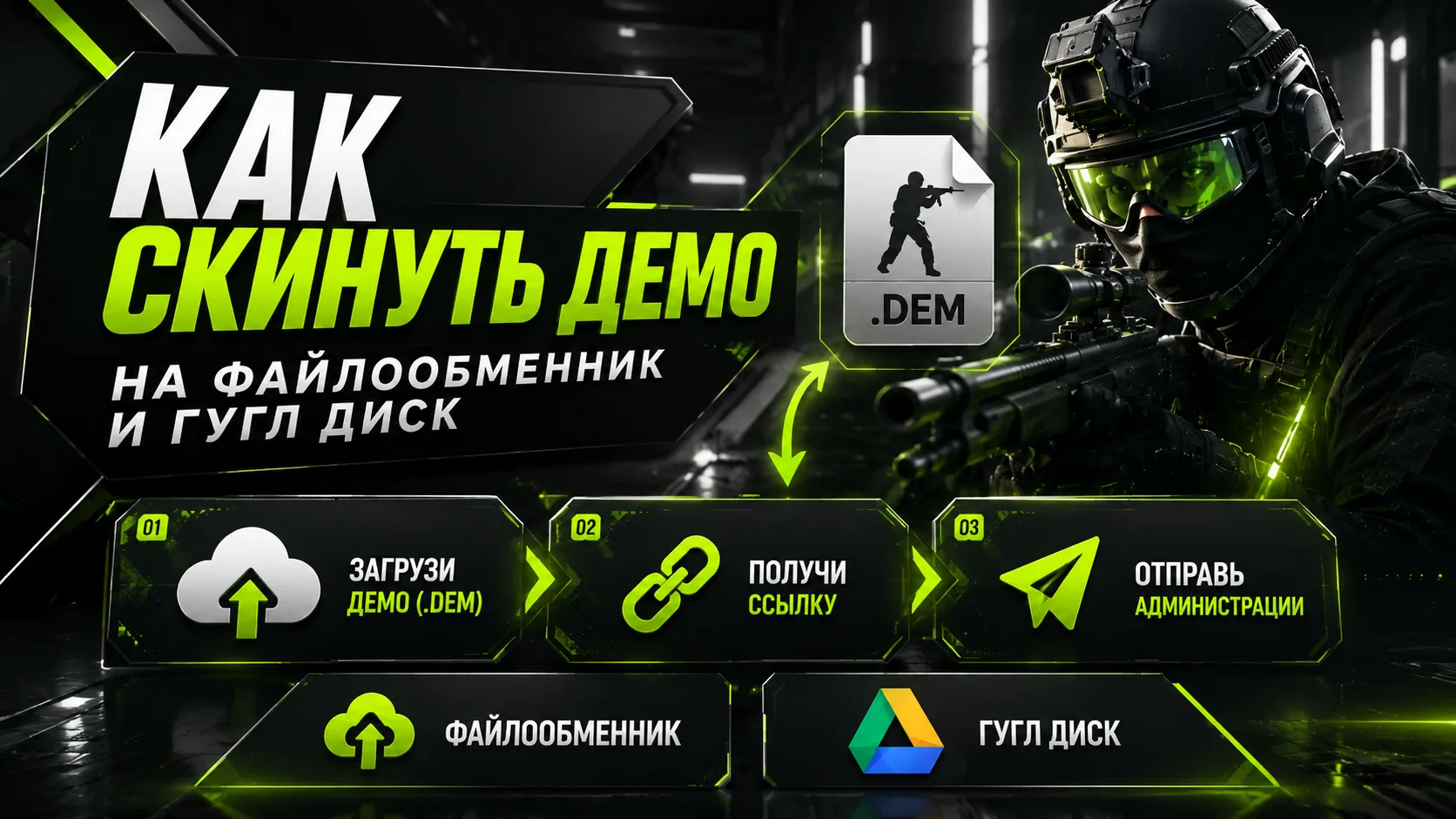
How to upload CS 1.6 demos and screenshots to file sharing services and Google Drive.
Sometimes server administrators ask you to provide a demo or screenshots for review. This is very easy to do.
Method 1: Upload to Google Drive
Step 1: Sign in to Google
Go to Google Drive and sign in to your Google account.
Step 2: Open Google Drive
Click "Create" → "Upload Files."
Step 3. Select the required files
If you need to download a demo:
The demo is usually located at:
Counter-Strike 1.6\cstrike\
The file extension is .dem
For example: match.dem
If you need to download screenshots:
Open the folder:
Counter-Strike 1.6\cstrike\
Find the following images:
.bmp or .tga
In some builds, they may be automatically saved as *.jpg
Step 4. Wait for the download to complete
Once downloaded, the file will appear in your Google Drive.
Step 5. Share
Right-click the file.
Select: Share
Then:
Anyone with the link
Set access: View
Step 6. Copy the link
Click: Copy link
Send it to the server administration.
Method 2. Upload to a file hosting service
If you don't have a Google account, you can use any free file hosting service.
Step 1. Open any file hosting service.
Step 2. Click the Choose file or Upload button.
Step 3. Select: demo (.dem); and screenshots (.bmp, .tga, .jpg).
Step 4. Wait for the upload to complete.
Step 5. Copy the resulting link.
Step 6. Send the link to the server administration.
Where are demos and screenshots located in CS 1.6?
Default:
Counter-Strike 1.6\
└── cstrike\
This folder contains:
📁 Demo (*.dem)
📷 Screenshots (*.bmp, .tga, sometimes .jpg)
If you can't find the game folder
Find the Counter-Strike 1.6 shortcut.
Right-click on it.
Select "File Location" or "Open File Location."
Open the cstrike folder.
Helpful tip:
Before submitting, we recommend:
Make sure you've uploaded the exact files requested by the administration;
Don't rename the demo before review (unless requested);
If necessary, pack several files into a .zip archive to upload them as a single file.
This method works for almost all Counter-Strike 1.6 builds and only takes a couple of minutes.