 Russian
 Ukrainian
 English
 Polish
How to turn on the microphone in cs 1.6
Find out more about How to turn on the microphone in cs 1.6 in Counter-Strike 1.6! Useful tips, guides, stories and interesting facts for CS 1.6 fans. Read more on our website.
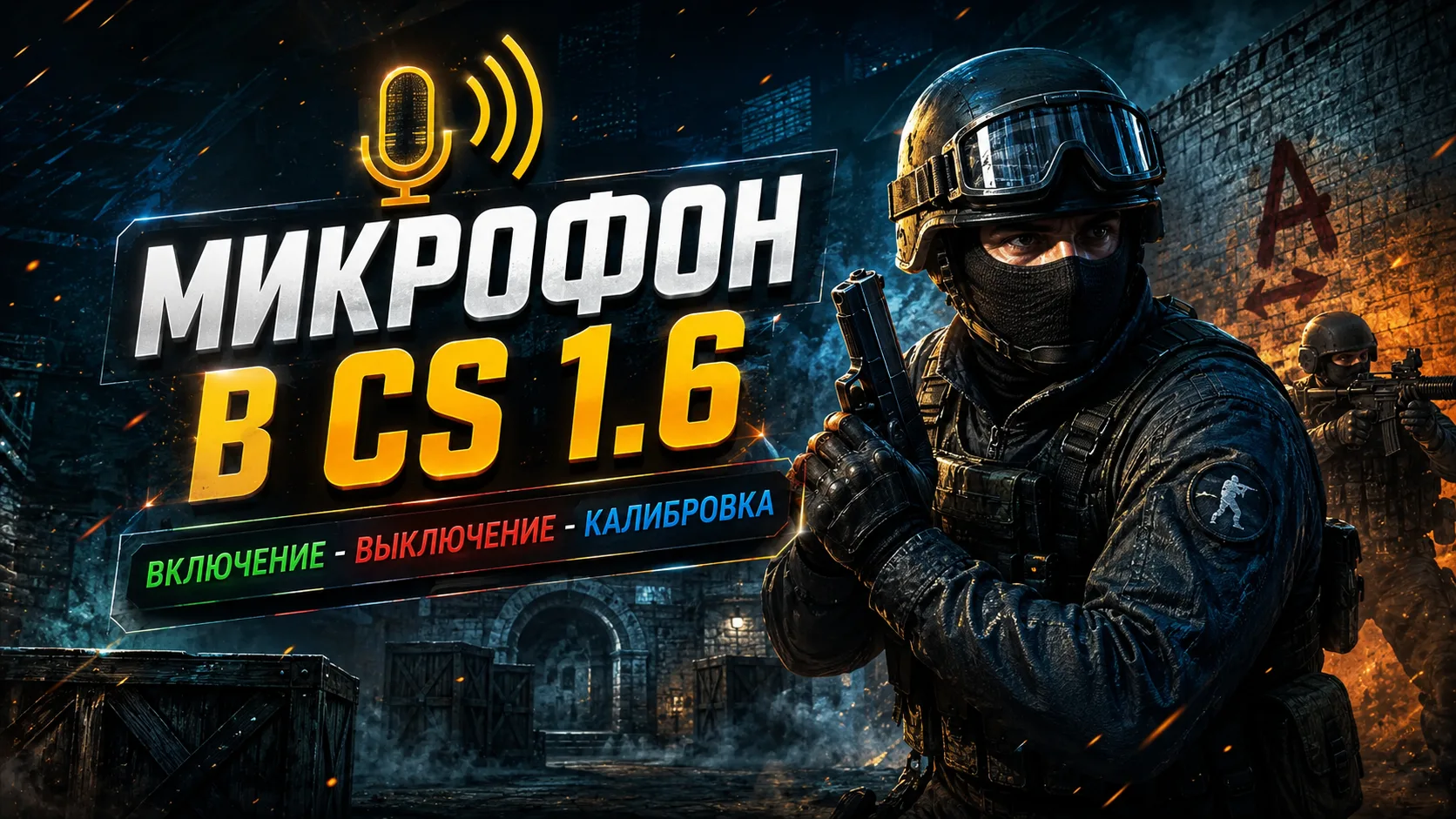
How to turn on the microphone in CS 1.6: step-by-step instructions
Counter-Strike 1.6 is not just a game, but a true classic of team shooters. And if you want to play effectively with friends or communicate with teammates on the server, you cannot do without voice communication. In this guide, we'll tell you how to turn on the microphone in KS 1.6, what to do if it doesn't work, and how to achieve excellent sound quality.
Why do you need a microphone in KS 1.6?
The microphone in CS 1.6 is used for voice communication with allies. This is especially important in competitive play - it is much easier to warn the team about an ambush, report the location of an enemy, or coordinate actions by voice than by typing into chat.
Voice communication also makes the game come alive: you can chat, joke, coordinate tactics, and simply have more fun in team matches.
Step 1: Connecting a microphone
Before proceeding with setup, make sure that the audio device is physically connected and working:
Plug the microphone cable into the pink 3.5mm jack on your PC or laptop.
Go to “Control Panel” → “Sound” → “Recording” tab.
Make sure your device is listed and set as default.
Check the signal level - the strip should respond during a conversation.
If everything is in order, you can move on to the next step.
Step 2: How to set up a microphone in CS 1.6
Now let's move on to the game itself. To set up a microphone in KS 1.6, do the following:
Open CS 1.6 and go to the “Settings” menu → “Voice” tab.
Check the box next to “Enable voice in game.”
Set the “Transmit Volume” and “Receive Volume” to a comfortable level.
Click "Test" - if you hear yourself, then everything is working.
Tip: If voice communication sounds too quiet, turn on the boost function or increase the volume in the device properties in Windows.
How to turn on the microphone in CS 1.6 via the console
For more precise settings, use the console. Open it with the ~ key (or E in the Russian keyboard) and enter the following commands:
voice_enable 1
voice_scale 1
voice_maxgain 3
voice_avggain 0.4
voice_overdrive 2
voice_overdrivefadetime 0.3
voice_fadeouttime 0.1
voice_loopback 1
These settings will help improve the sound, adjust noise reduction and echo.
If you want to check how you sound in the game, the voice_loopback 1 command turns on feedback so you can hear your voice.
How to reassign the microphone button
By default, voice communication is activated when you hold down the key K. But for convenience, you can reassign it, for example, to C:
bind "c" "+voicerecord"
Now to speak, just hold down the key C. You can replace it with any other that is convenient for you.
The microphone does not work in KS 1.6 - what to do?
If after all the settings you still cannot hear the voice, check the following:
The audio device is not connected to the system and is running in other applications.
Voice is enabled in CS 1.6 (command voice_enable 1).
The microphone is not blocked in the server settings (on some servers the voice is disabled by admins).
Antivirus or firewall does not block access to voice communications.
If all else fails, try reinstalling the sound card drivers and make sure that the microphone is selected by default in the system.
How to set up a microphone in KS 1.6 on Windows 7
Many players still use Windows 7, so it is important to know how to set up a microphone in CS 1.6 Windows 7:
Go to “Control Panel” → “Sound”.
Recording tab → right click on your voice recording device → Set as default.
Go to Properties → Levels → set the volume above 80.
Go to Advanced and disable all enhancements.
Make sure voice communication is working through “Test” in the game settings.
Advantages of voice communication in CS 1.6
Quick interaction with the team
Improving efficiency and tactics
Fewer misunderstandings and mistakes
More fun from the game
How to check if others can hear you
You can simply go to the server and hold down the voice chat key - if a sound icon appears next to your nickname, it means that the microphone in CS 1.6 is on and other players can hear you.
You can also ask allies to confirm whether your voice is heard.
Now you know how to turn on the microphone in KS 1.6, where and how to configure it, what commands to use and what to do if problems arise. Voice communication is a powerful tool that helps you win, work together, and simply enjoy the game.
Connect a microphone, configure it and communicate with your team! This will make your gameplay brighter and your victories more frequent.
Good luck on the servers and only pleasant communication!